The easiest way to scan receipts into Xero is to collect the receipt first, extract the details, review anything that needs attention, then sync it to Xero.
Receipt AI is built for that workflow. Your team can upload receipts by SMS, email, web, or WhatsApp, and Receipt AI helps prepare the receipt for Xero.
Quick Answer
To scan receipts into Xero with Receipt AI:
- Upload the receipt by SMS, email, web, or WhatsApp.
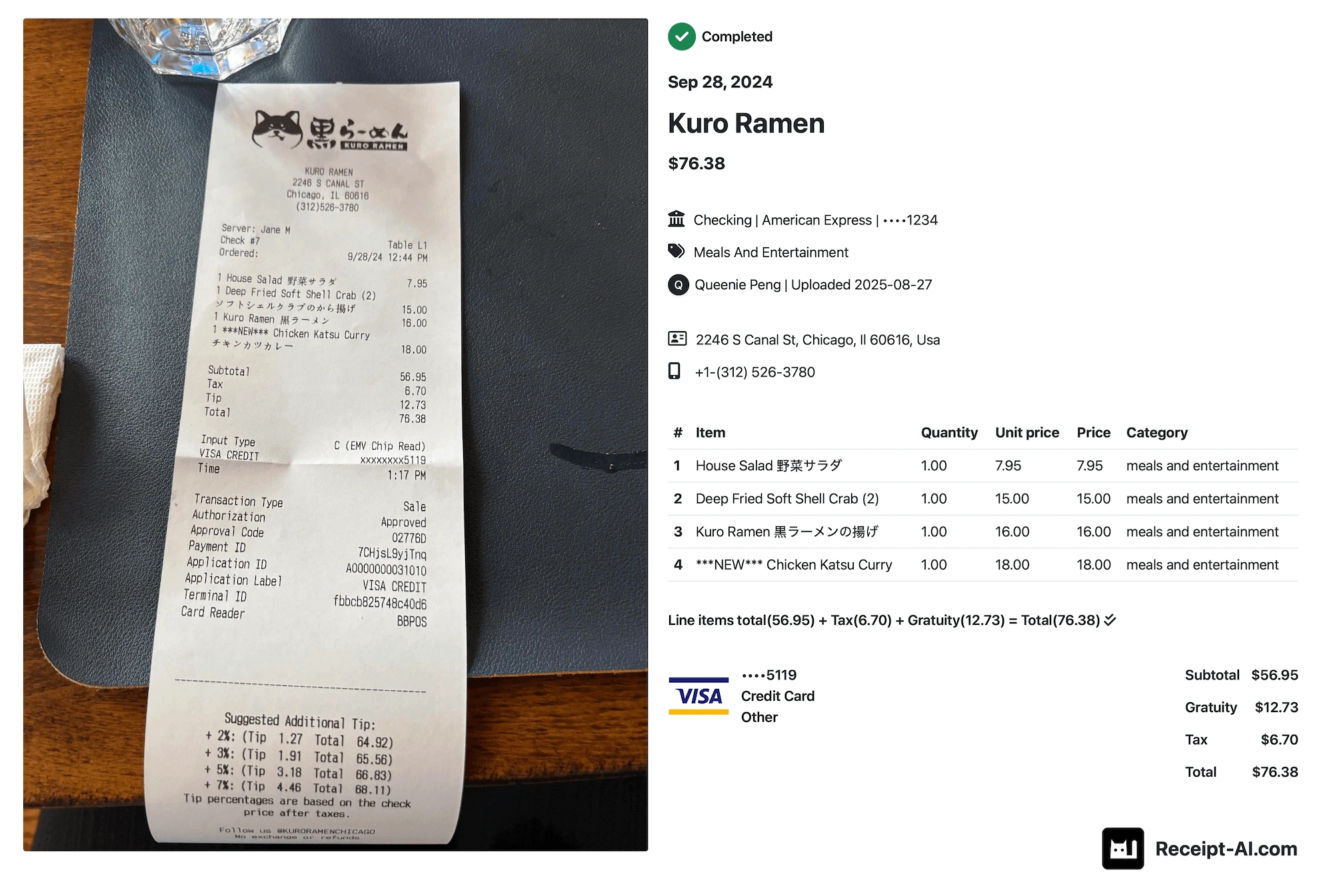
- Receipt AI extracts the vendor, date, total, and line items.
- Smart matching maps vendors and accounts, plus tax codes if needed.
- Review the receipt if anything needs attention.
- Sync it to Xero and find it in Files or Account Transactions, depending on your settings.
Cermak Produce Receipt Example in Xero
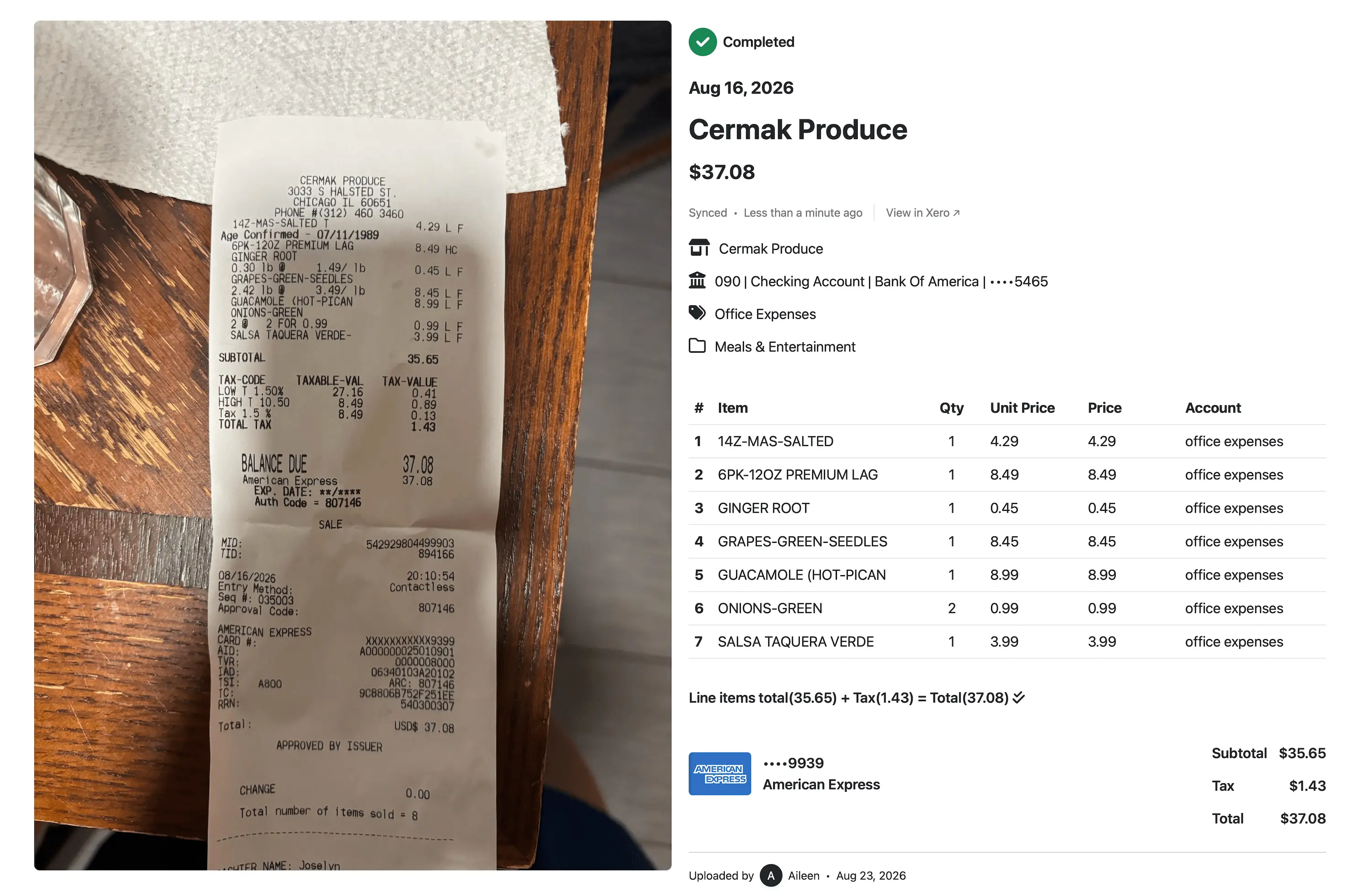
Example: Receipt AI scans a Cermak Produce receipt, extracts line items, maps the vendor and account, and syncs the receipt to Xero.
This product screenshot shows a receipt from Cermak Produce (Aug 16, 2026). Receipt AI extracted and mapped:
- Vendor: Cermak Produce
- Total: $37.08
- Subtotal: $35.65
- Tax: $1.43
- Bank account: 090 | Checking Account | Bank Of America ending in 5465
- Payment card: American Express ending in 9939
- Account: Office Expenses
- Folder: Meals & Entertainment
- Sync status: Synced to Xero
- 14Z-MAS-SALTED - $4.29
- 6PK-12OZ PREMIUM LAG - $8.49
- GINGER ROOT - $0.45
- GRAPES-GREEN-SEEDLES - $8.45
- GUACAMOLE (HOT-PICAN) - $8.99
- ONIONS-GREEN - $0.99
- SALSA TAQUERA VERDE - $3.99
The line items total $35.65, plus $1.43 tax, matching the receipt total of $37.08. This is the map from receipt image to Xero record: vendor, bank account, payment card, expense account, folder, line items, tax, total, and sync status stay connected.
1. Upload the Receipt
Receipt AI gives your team four ways to upload receipts:
- SMS: text a receipt photo to your Receipt AI upload number.
- Email: forward an email receipt or send receipt attachments.
- Web: drag and drop receipt files from your computer.
- WhatsApp: send receipt photos from WhatsApp.
SMS upload is available for US, Canadian, and Australian phone numbers. Email and web work worldwide. WhatsApp upload works with phone numbers from 240+ countries and regions.
2. Receipt AI Extracts the Details
After upload, Receipt AI reads the receipt and extracts the information your books usually need.
That can include vendor, date, total, line items, memo, payment details, and the receipt image, depending on the receipt and your settings.
Smart matching maps vendors and accounts, plus tax codes if needed.
3. Review the Receipt if Needed
Some receipts are clear. Some need review.
You can review or edit the receipt before it syncs to Xero.
If you need to edit it after it syncs, update the receipt in Receipt AI. It can sync the change without creating duplicates.
4. Sync to Xero
Once the receipt is ready, Receipt AI helps send it to Xero.
If line items are enabled, Receipt AI can send line items to Xero. If line items are not enabled, or if a receipt cannot be safely matched line by line, Receipt AI sends the date, vendor, and total.
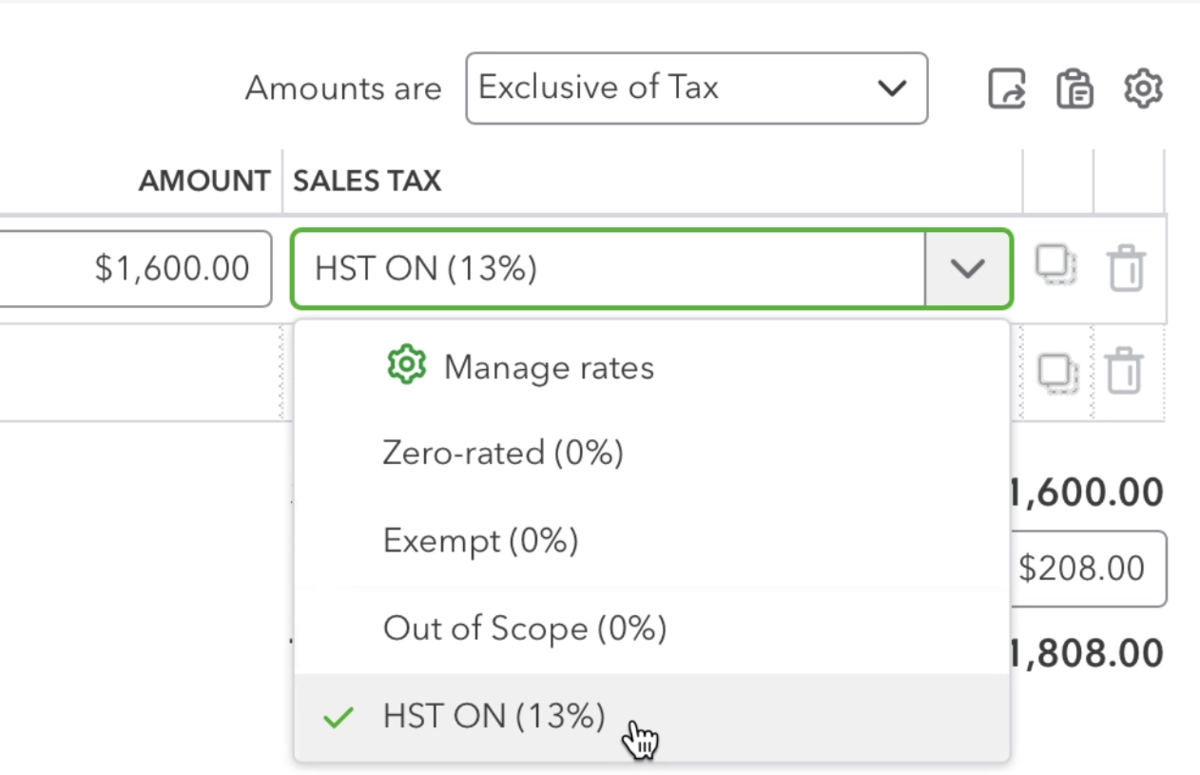
If your business uses tax codes, Receipt AI can also help apply the right tax code before syncing.
5. Find the Receipt in Xero
Where the receipt appears in Xero depends on your Receipt AI settings.
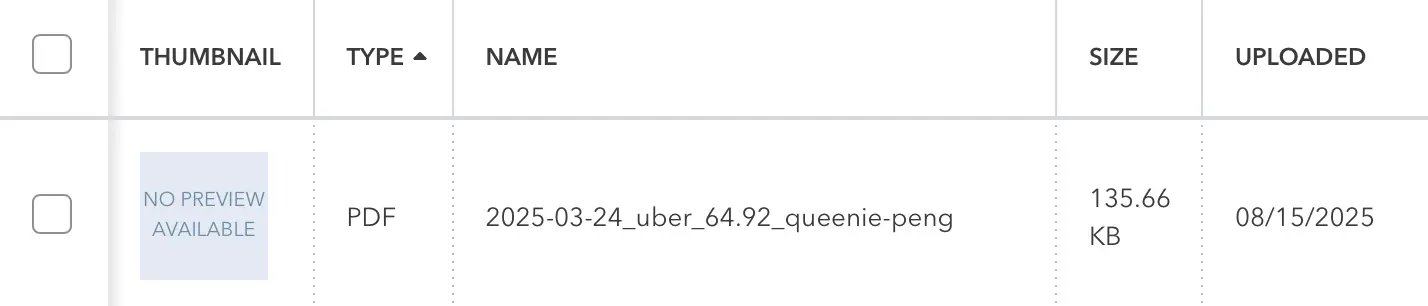
If One-Click Reconciliation is not enabled, the receipt file is stored in Xero - Files.
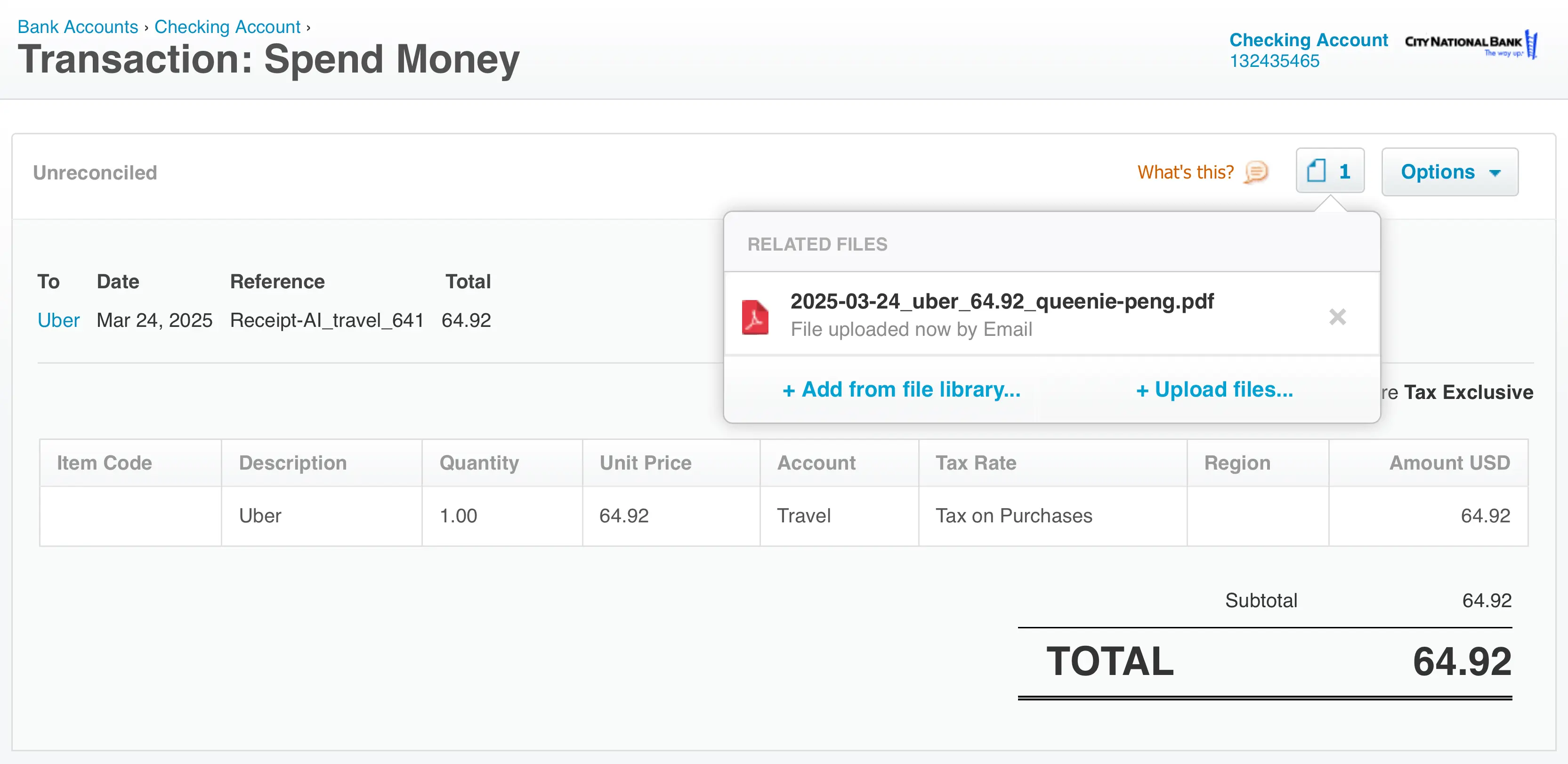
If One-Click Reconciliation is enabled, Receipt AI can create a Spend Money transaction in Xero. You can find the synced receipt in Account Transactions, with the receipt file attached.
Who This Is Best For
This workflow is best for businesses that collect receipts from more than one place.
Field teams can text receipts from the job. Consultants can forward travel receipts from email. Managers can upload batches from the website. Team members can also send receipts through WhatsApp. The back office gets the receipt image and the receipt data in one place.
Xero sync is available on Business Basic and higher plans.
Related Guides
- How Receipts Appear in Xero with Receipt AI
- How to Upload Receipts Using Receipt AI
- How Receipt AI Syncs Tax Codes to QuickBooks Online and Xero
- Why Is My Receipt Not Synced to QuickBooks or Xero?
Use Receipt AI With Xero
Learn more about Receipt AI for Xero.