Monday, June 08, 2026
Why Is My Receipt Not Synced to QuickBooks or Xero?
Share this article:
If a receipt is not synced, it has not reached QuickBooks or Xero yet.
Open the receipt first. The message near the top usually tells you what to do next.
Find What You See
| What you see | What it means | What to do |
|---|---|---|
| Action Required | Receipt AI needs you to check something. | Edit, review, archive, or upload. |
| Not synced | The receipt is saved in Receipt AI, but not uploaded yet. | Follow the message on the receipt. |
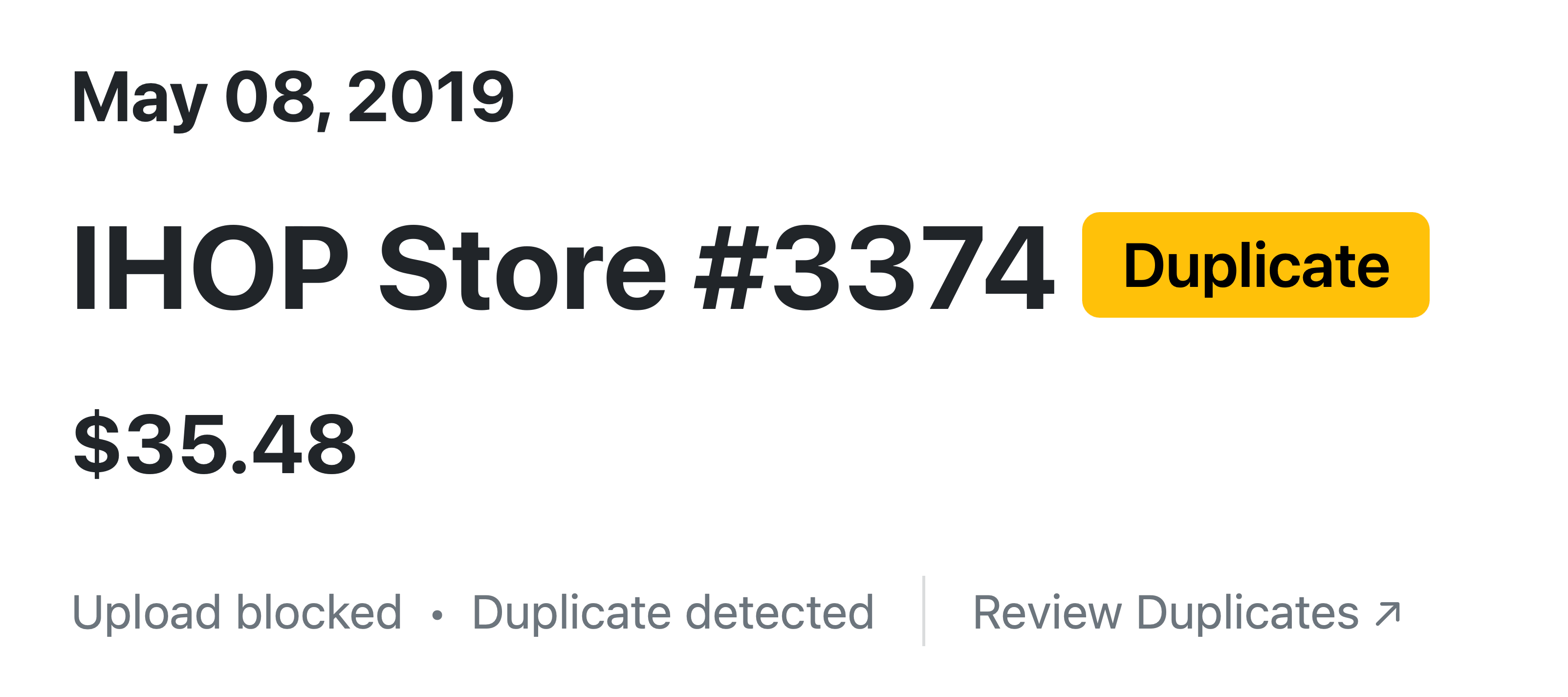
| Duplicate detected | Receipt AI found a possible duplicate. | Review duplicates before uploading. |
| Starting, Reading, Creating, or Syncing | Receipt AI is still working. | Wait, then refresh if needed. |
| QuickBooks or Xero disconnected | Receipt AI cannot upload until the connection works again. | Reconnect QuickBooks or Xero. |
1. Action Required
Receipt AI stopped because the receipt needs one more check.
Common reasons:
The vendor, date, or total is missing.
The image is hard to read.
The image may not be a receipt.
Receipt AI needs you to click Upload to QuickBooks or Upload to Xero to finish uploading.
What to do:
Read the message near the top of the receipt.
If details are missing, click Edit, fix them, and save.
If the image is not a receipt, archive it.
2. Not Synced
This means the receipt is saved in Receipt AI, but it has not been uploaded to QuickBooks or Xero yet.
This does not always mean something is wrong. It may be waiting because your account uses Manual Review, or because Receipt AI needs you to check the receipt first.
What to do:
Open the receipt and follow the message shown near the top. If you see Upload to QuickBooks or Upload to Xero, click it to finish uploading.
3. Duplicate Detected
Receipt AI found another receipt that may be the same expense.
What to do:
Click Review Duplicates.
Keep the correct receipt. Archive the extra one if you do not need it.
4. Starting, Reading, Creating, or Syncing
Receipt AI is still working on the receipt.
What to do:
Wait a moment. If the page does not update, refresh your browser with Command + R on Mac or Ctrl + R / F5 on Windows.
Do not upload the same receipt again while it is processing. That can create an extra copy.
5. QuickBooks or Xero Disconnected
Receipt AI cannot upload receipts if the accounting connection is disconnected.
What to do:
Reconnect QuickBooks or Xero from your account settings.
After reconnecting, open the receipt again and upload it if Receipt AI asks you to.
What If I Edit the Receipt?
When you edit a receipt in Receipt AI, we sync the change to QuickBooks or Xero without creating duplicates.
If the transaction has already been reconciled, the change stays in Receipt AI.
Still Not Sure?
Open the receipt. The message near the top usually tells you the next step.
You can also click Edit, review the status at the bottom, or use the three-dot menu to upload again if you deleted the expense in QuickBooks or Xero.
not synced
not uploaded
QuickBooks upload
Xero upload
receipt upload
action required
manual review
duplicate receipt
QuickBooks disconnected
Xero disconnected
Related Articles


Start uploading Receipts using SMS.
Save 97% of your time with efficient receipt processing
Works with Xero and QuickBooks
Perfect for businesses, big and small
No extra app downloads. Works with tools you already have (SMS, Email and WhatsApp)