Wednesday, June 03, 2026
What Does My Receipt Status Mean?
Share this article:
Receipt statuses tell you what happened after you uploaded a receipt, and whether you need to do anything next.
Find the status you see in Receipt AI, then jump to that section below.
Some status words are grouped together in this guide. For example, Starting, Preparing receipt, Reading receipt, Creating expense, and Syncing all mean the receipt is still processing.
1. Synced
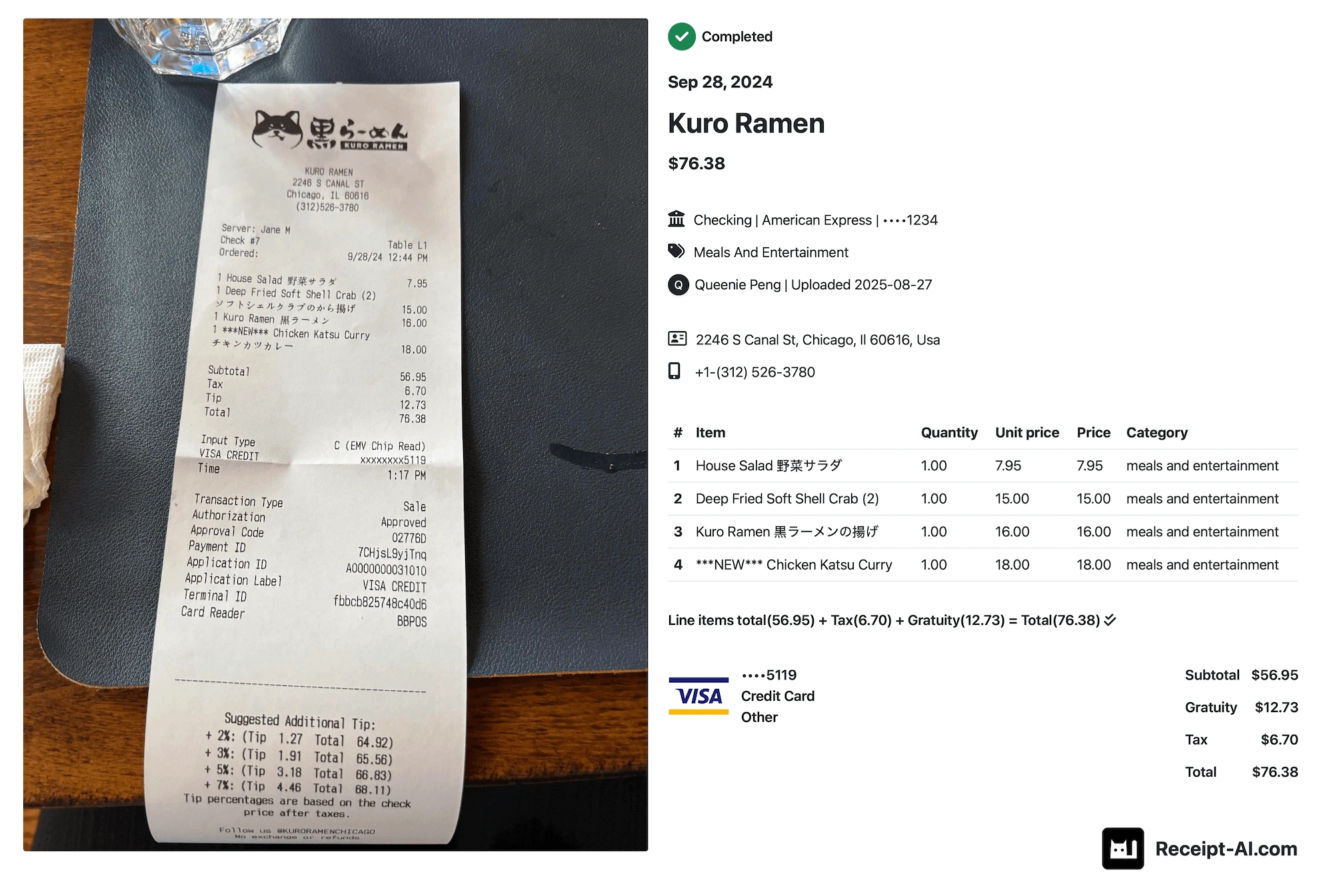
This means the receipt was uploaded to QuickBooks or Xero.

If you edit the receipt in Receipt AI, the changes sync to QuickBooks or Xero without creating duplicates. If the transaction has already been reconciled, changes stay in Receipt AI.
What to do:
Nothing. You are done.
Open in QuickBooks or Xero
You can click View in QuickBooks or View in Xero to open it in your accounting software. If you are asked to sign in first, click the link again after signing in.
Need to fix something?
Click Edit in Receipt AI. We sync the change without creating duplicates. If the transaction is already reconciled, the change stays in Receipt AI.
2. Not Synced
This means the receipt is saved in Receipt AI, but it has not been uploaded to QuickBooks or Xero yet.
This does not always mean something is wrong. It may be waiting for your next step.
For example, this can happen when you use Manual Review, when a receipt needs review, or when Receipt AI needs you to click Upload to QuickBooks or Upload to Xero to finish uploading.
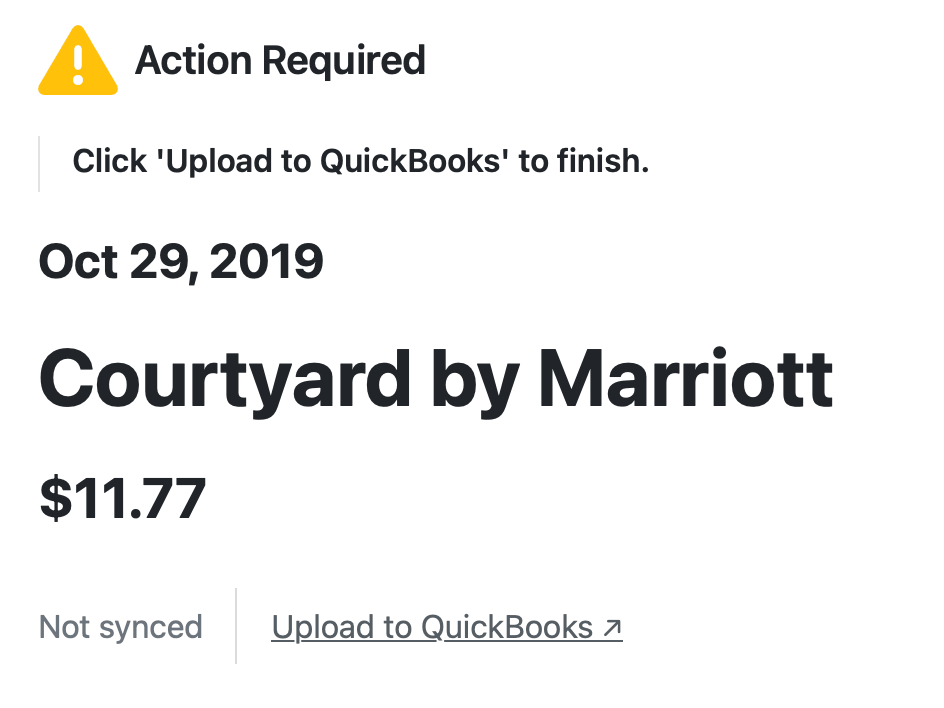
What to do:
Open the receipt and follow the message shown on the page. You may need to review it, click Edit to fix missing details, or click Upload to QuickBooks or Upload to Xero to finish uploading.
3. Upload Blocked / Duplicate Detected
This means Receipt AI stopped the upload because the receipt may be a duplicate.
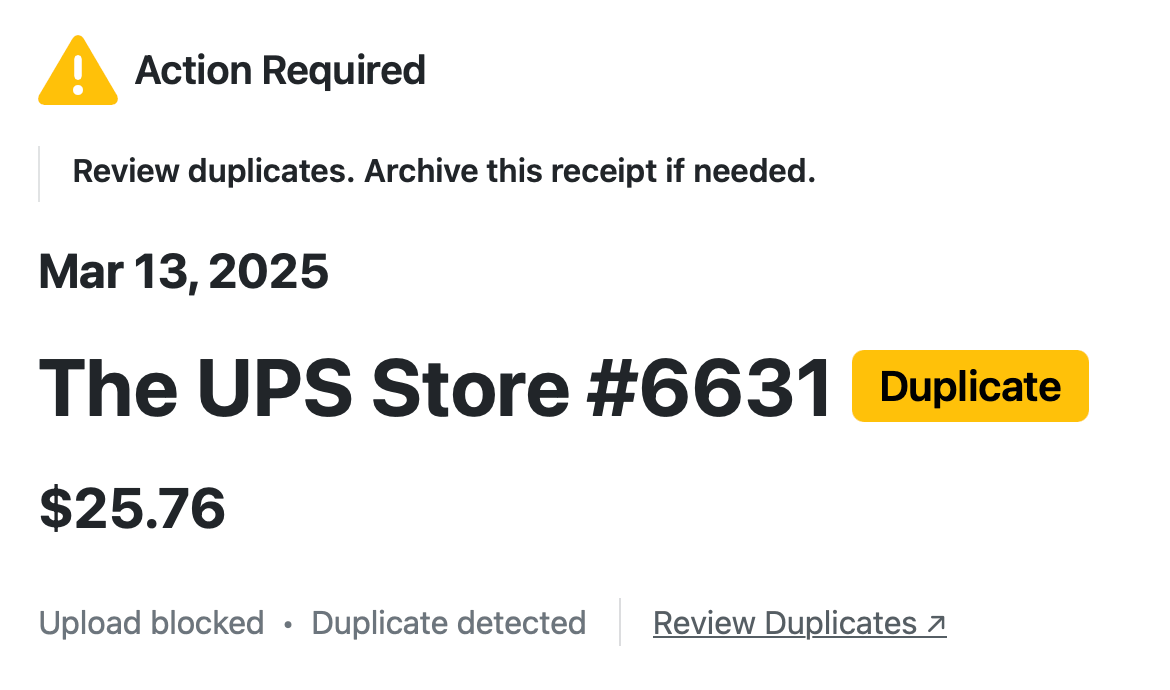
What to do:
Click Review Duplicates to compare the receipts. Archive the extra copy if you do not need it.
4. Processing / Creating / Syncing
This means Receipt AI is still working on the receipt.
You may see words like Starting, Preparing receipt, Reading receipt, Creating expense, or Syncing.

What to do:
Wait a moment while Receipt AI reads the receipt.
If the page does not update, refresh your browser. Press Command + R on Mac, or Ctrl + R / F5 on Windows. Avoid uploading the same receipt again while it is processing, because it may create a duplicate.
What Happens If I Edit a Receipt?
When you edit a receipt in Receipt AI, we sync the change to QuickBooks or Xero without creating duplicates.
If the transaction has already been reconciled, the change stays in Receipt AI.
Still Not Sure?
Open the receipt. Receipt AI will show the next step, such as editing missing details, reviewing duplicates, or uploading to QuickBooks or Xero.
The action is usually shown next to the status. You can also click Edit, or use the three-dot menu to upload or re-upload the receipt to QuickBooks or Xero.
receipt status
upload status
synced
not synced
upload blocked
duplicate detected
processing
review duplicates
QuickBooks
Xero
Related Articles


Start uploading Receipts using SMS.
Save 97% of your time with efficient receipt processing
Works with Xero and QuickBooks
Perfect for businesses, big and small
No extra app downloads. Works with tools you already have (SMS, Email and WhatsApp)