When your business pays tax on a receipt, that tax may be recoverable.
But only if it is recorded correctly.
Receipt AI helps by mapping and syncing receipt tax codes to QuickBooks Online and Xero. When the right tax code is clear, Receipt AI can apply it automatically. When it is not clear, we ask your team to review it first.
Quick answer:
A tax amount is the number on the receipt. A tax code tells QuickBooks Online or Xero how to treat that tax.
Why Tax Codes Matter
A receipt total is not always just an expense.
Sometimes part of that total is GST, HST, PST, QST, VAT, or another sales tax your business may need to track separately.
If the tax is recorded incorrectly, your business may lose money because you may not be able to get that tax money back.
What Is a Tax Code?
A tax amount tells you how much tax was paid.
A tax code tells your accounting software how to handle that tax.
Tax amount: $32.42
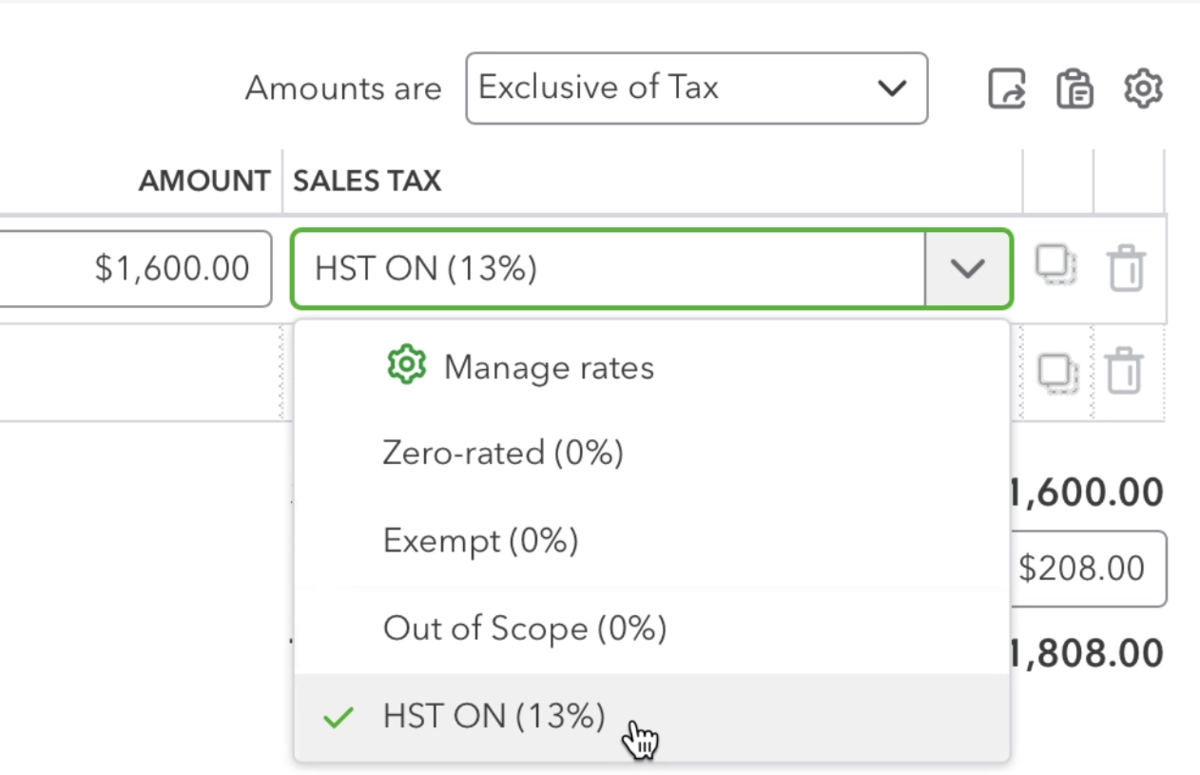
Tax code: HST ON
In QuickBooks Online
In Xero
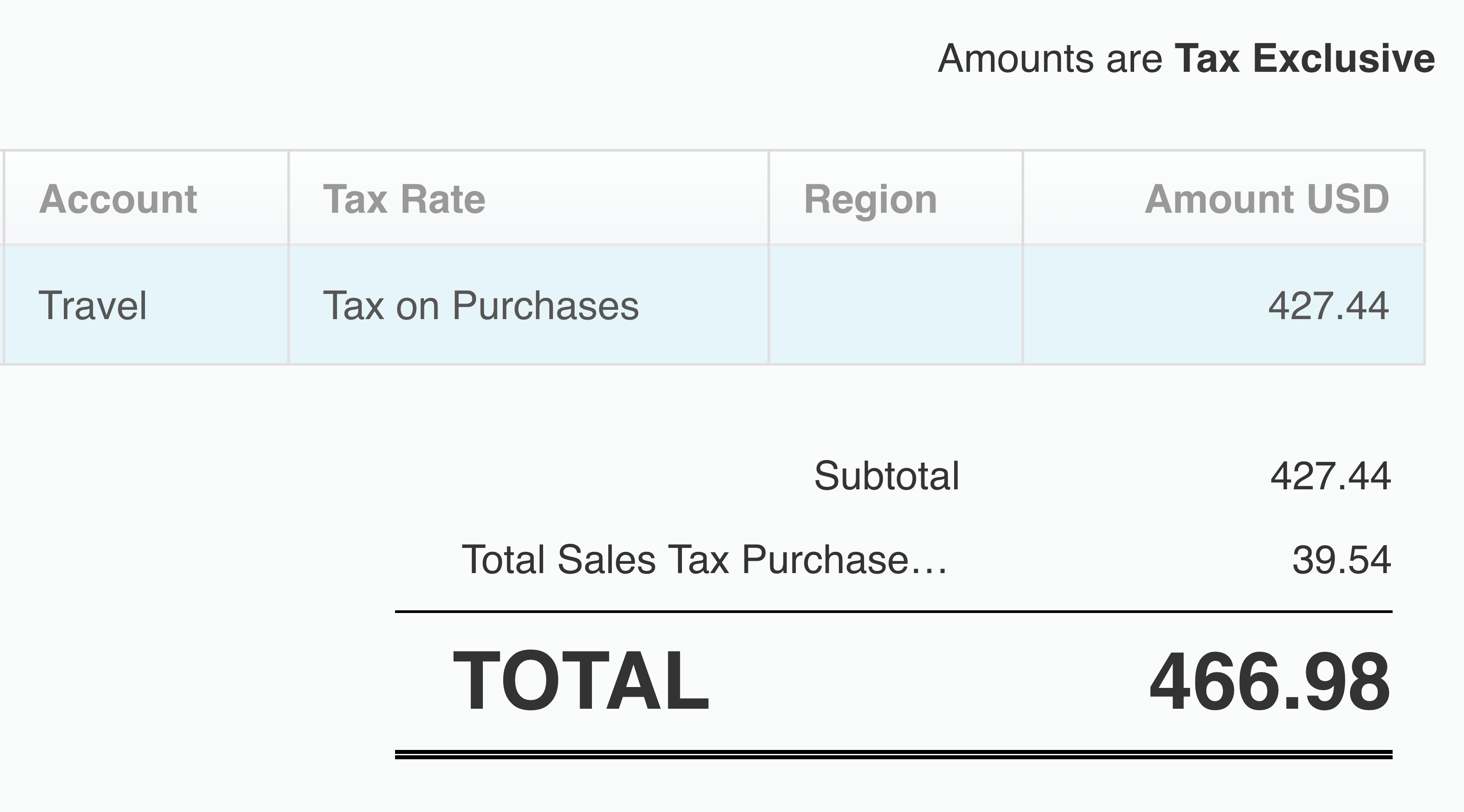
Common tax code examples include HST ON, GST on Expenses, Tax Exempt, Zero-rated, and Out of Scope. The exact names depend on your QuickBooks Online or Xero setup.
Canadian Example: HST Included in Fuel
Fuel receipts in Canada often include tax inside the total price.
Fuel total: $281.83
HST included: $32.42
The customer paid $281.83 in total. That total should stay the same in QuickBooks Online or Xero.
The important part is that the HST should still be tracked as tax, not buried inside the fuel expense.
Why Tax-Inclusive Receipts Can Be Tricky
Some receipts say tax is included in the price.
If that receipt is sent incorrectly, QuickBooks Online or Xero may treat the receipt total as the before-tax amount and add tax again.
Receipt AI helps prevent that by keeping the receipt total correct while still sending the selected tax code.
How Receipt AI Handles Tax Codes
Receipt AI syncs tax codes from your accounting software.
You can choose which tax codes should be available for receipts.
Then Receipt AI helps map receipts to the right tax code.
When the tax code is clear, Receipt AI can apply it automatically.
When the tax code is not clear, Receipt AI asks your team to review it.
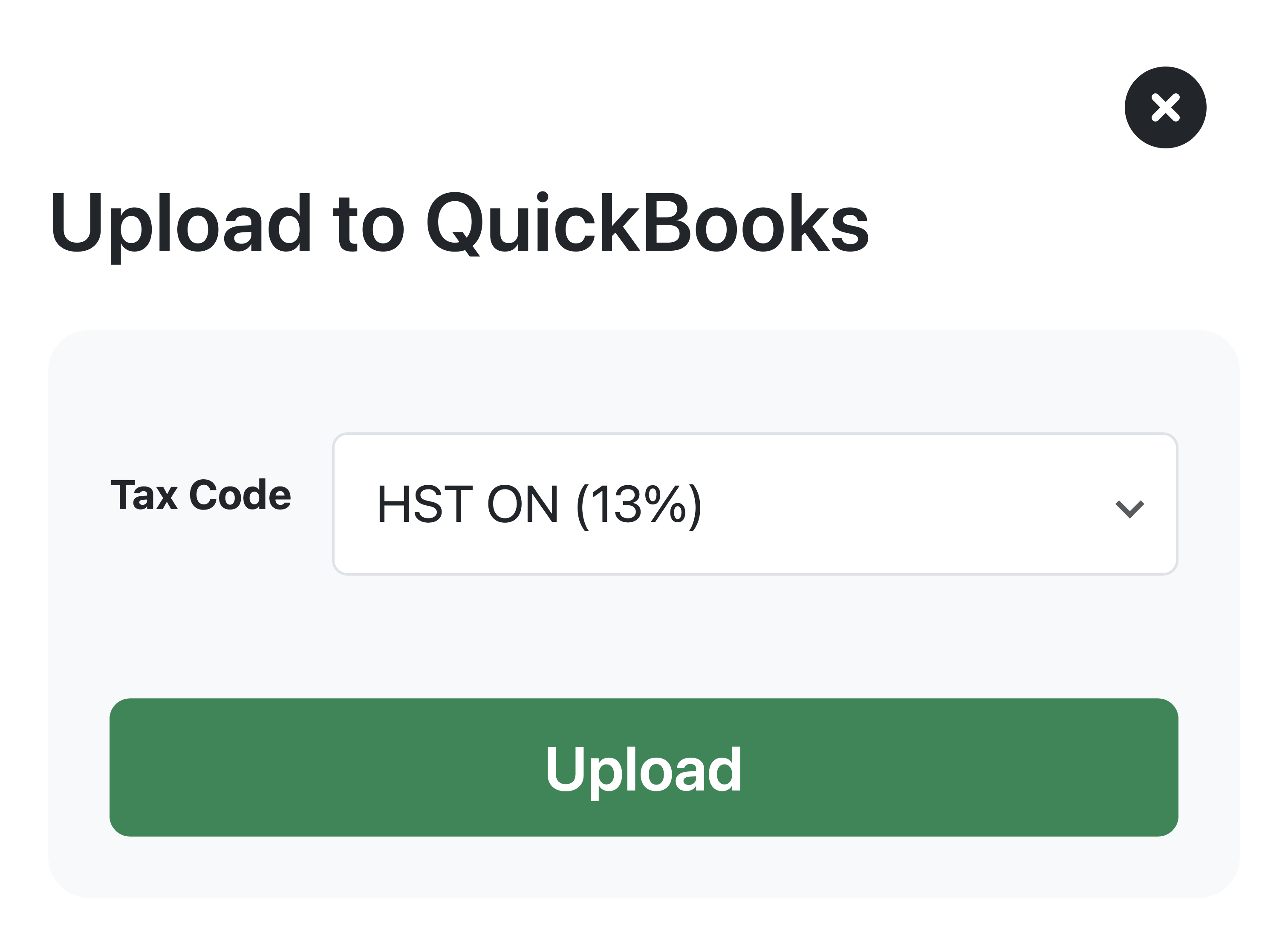
When the receipt syncs, Receipt AI sends the selected tax code to QuickBooks Online or Xero.
Receipt AI can help with:
Tax-inclusive receipts
GST, HST, PST, QST, VAT, and sales tax on receipts
QuickBooks Online tax codes
Xero tax rates
Receipts where the total must stay exactly the same
What About Australian Businesses?
The same idea applies to Australian businesses that track GST on purchases.
The tax code names may be different, but the goal is the same: record the right tax, keep the receipt total correct, and make bookkeeping easier.
Why Some Receipts Sync as One Summary Line
Some receipts are simple. The line items add up, the tax is clear, and the total matches.
Other receipts include shipping, service fees, discounts, gratuity, tax-inclusive pricing, partially taxable items, or line items that do not match the final receipt total.
When Receipt AI cannot safely send every line item without changing the accounting total, it may sync the receipt as one summary line.
This is intentional. It is better to send one correct accounting line than several detailed lines that create the wrong total.
Do All Businesses Need Tax Codes?
No. If your business does not track sales tax on purchases, you may not need tax codes for receipts.
Tax codes are useful when your accountant or bookkeeper needs to track GST, HST, PST, QST, VAT, sales tax, recoverable tax, input tax credits, or GST credits.
How to Set Up Tax Codes in Receipt AI
You can set up tax codes during onboarding.
Tax Codes only works with Business Basic and higher plans.
If you already finished onboarding, go to Edit Profile, select the Tax Codes you use for receipts, then click Save.
Receipt AI will sync tax codes from QuickBooks Online or Xero. After that, Receipt AI can use those tax codes when mapping receipts, reviewing uncertain receipts, and syncing approved receipts to QuickBooks Online or Xero.
Helpful References
Canada Revenue Agency explains that GST/HST registrants may recover GST/HST paid on eligible business purchases by claiming input tax credits: CRA input tax credits.
QuickBooks explains common Canadian sales tax codes, including HST ON, Zero-rated, Exempt, and Out of Scope: QuickBooks common sales tax codes.
Xero explains how tax rates are named, used, and managed in Xero: Xero tax rates.
The Australian Taxation Office explains that registered businesses may be able to claim GST credits for GST included in eligible business purchases: ATO GST credits.
This article is for general product education and is not tax, legal, or accounting advice. Ask your accountant or bookkeeper which tax codes your business should use.