Monday, June 08, 2026
How to Fix a Receipt That Needs Review
Share this article:
If a receipt needs review, Receipt AI is asking you to check one thing before it finishes uploading.
Quick fix:
1. Open the receipt.
2. Read the message at the top.
3. Click Edit if details are missing.
4. Click Save.
5. Click Upload to QuickBooks or Upload to Xero if Receipt AI asks you to finish uploading.
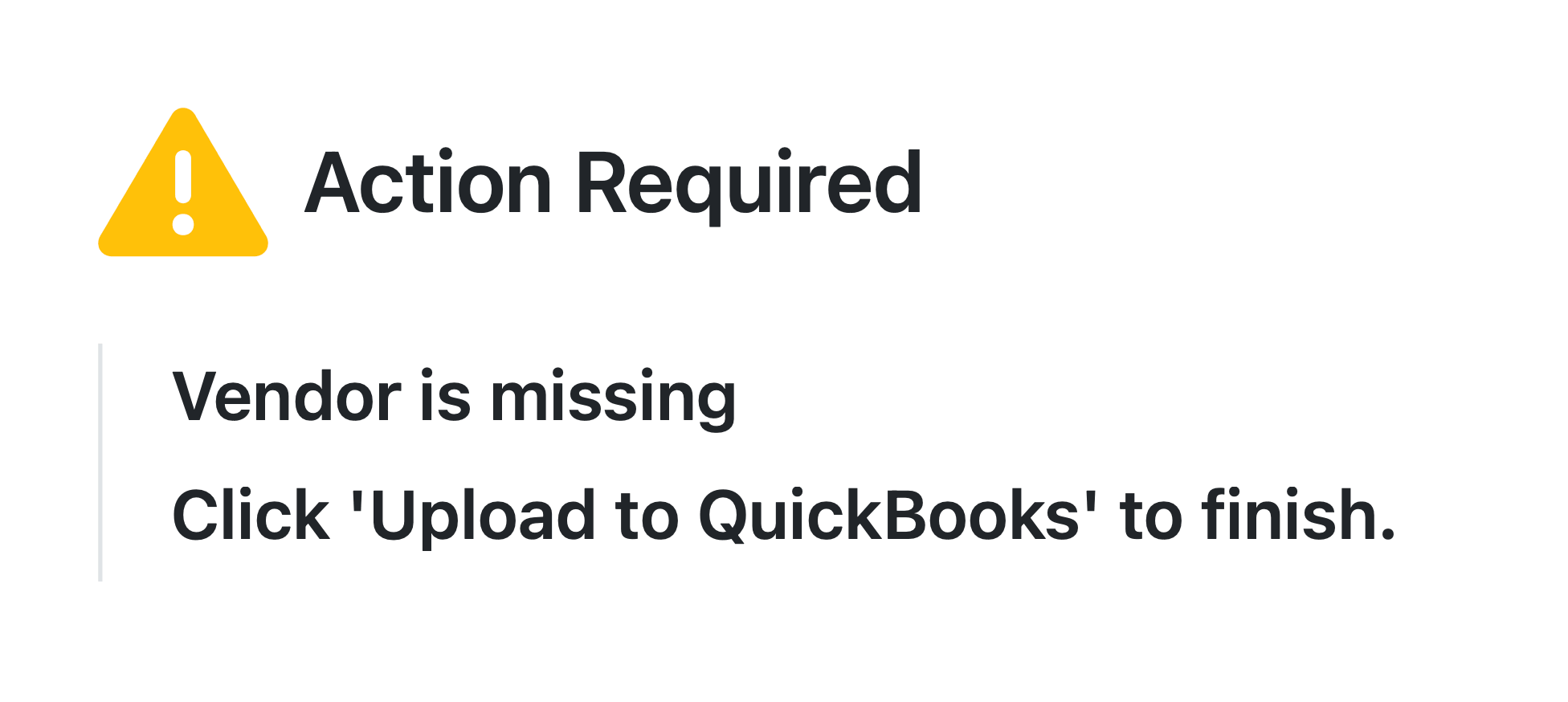
Find Your Message
Look at the message shown at the top of the receipt, then follow the matching step below.
“Name is missing”
Click Edit and add the vendor name.
“Date is missing”
Click Edit and add the receipt date.
“Total is 0”
Click Edit and enter the correct total.
“Vendor is missing”
Click Edit and choose or add the vendor.
“Review duplicates”
Click Review Duplicates. Archive the extra copy if you do not need it.
“Click Upload to QuickBooks or Xero to finish”
Review the receipt, then click Upload to QuickBooks or Upload to Xero.
After You Fix It
Click Save.
If Receipt AI can continue automatically, it will.
If you see Upload to QuickBooks or Upload to Xero, click it to finish uploading.
What If I Do Not Need the Receipt?
If the receipt is a duplicate, incorrect, or not needed, archive it.
Archived receipts are still saved in Receipt AI, just hidden from your active receipt list.
Will Editing Create a Duplicate?
No. Editing a receipt in Receipt AI will not create a duplicate in QuickBooks or Xero.
If the receipt has already synced, Receipt AI updates the existing receipt or transaction when possible. If the transaction has already been reconciled, the change stays in Receipt AI.
However, if you click Upload to QuickBooks or Upload to Xero from the individual receipt page, Receipt AI will upload the receipt again and create a new copy in QuickBooks or Xero.
needs review
action required
review receipt
edit receipt
receipt status
manual review
smart review
duplicate receipt
QuickBooks
Xero
Related Articles


Start uploading Receipts using SMS.
Save 97% of your time with efficient receipt processing
Works with Xero and QuickBooks
Perfect for businesses, big and small
No extra app downloads. Works with tools you already have (SMS, Email and WhatsApp)