Refund receipts are one of those annoying bookkeeping tasks most people don’t think about—until they actually need to record one. A customer returns something, or you get money back on a purchase, and suddenly you’re trying to figure out how to enter a negative amount without breaking your accounting records.
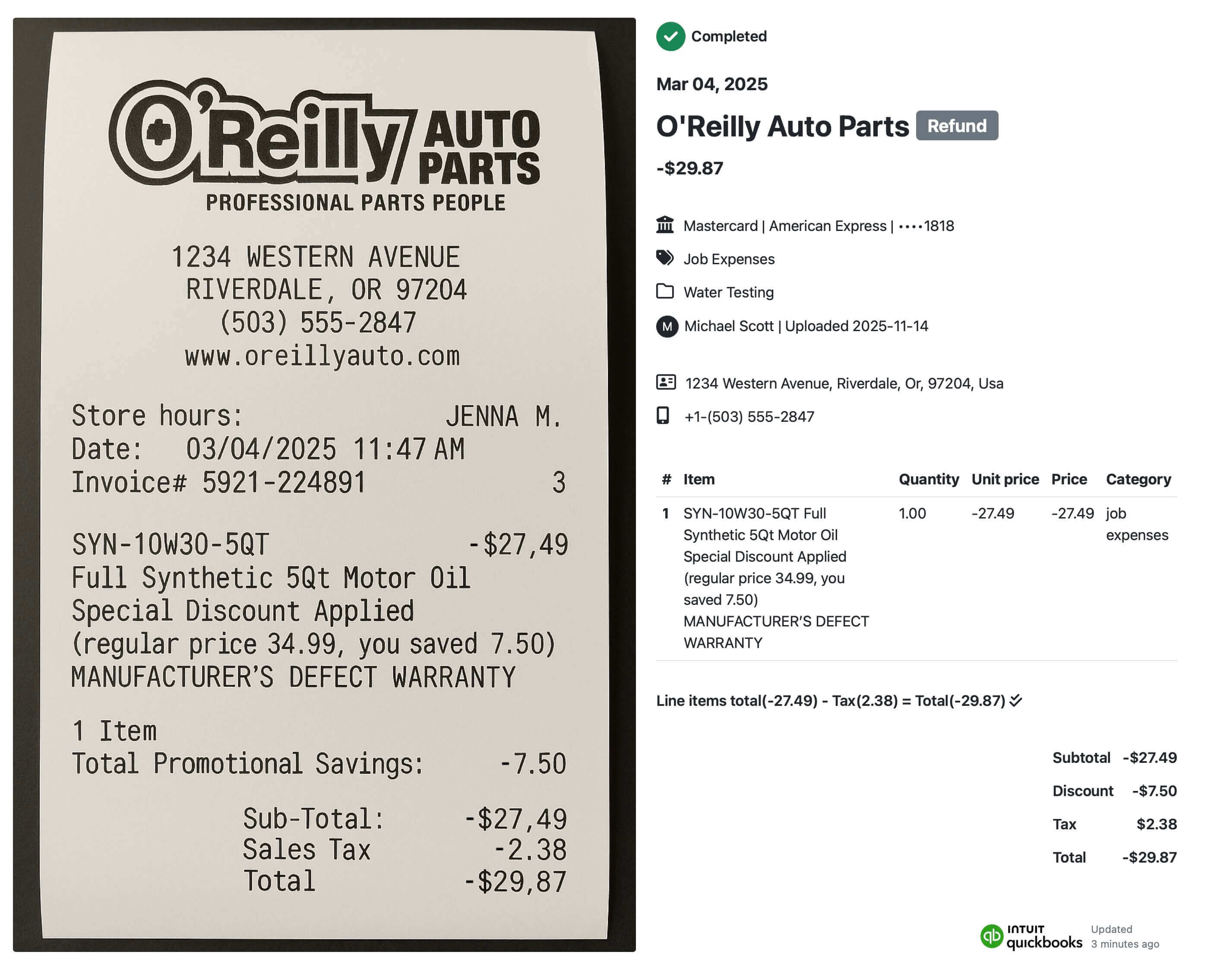
Receipt AI takes all of that off your plate. When you send it a refund receipt, it knows immediately that this isn’t a normal purchase. It processes the refund, formats it correctly for Xero, and creates the right type of transaction—without you having to touch anything.
Here’s how it works and why the Xero side ends up as a Receive Money transaction.
Recognizing a Refund (Without You Telling It)
You don’t need to label anything or explain the situation. If the receipt shows money coming back to you, Receipt AI automatically treats it as a refund.
In the Home Depot example:
• The amount is negative
• The vendor is recognized
• The payment method is captured
• The item being returned is listed
• The original category can be restored
You just email the receipt (or text it), and Receipt AI figures out the rest.

The user simply texted the Home Depot receipt to Receipt AI. Within seconds, the system extracted all the key information:
- Vendor: The Home Depot
- Date: March 3, 2025
- Amount: –$450.00
- Category Applied: Repairs and Maintenance
- Payment Method: Ending in 5465
-
Item Returned:
- Bedford Shaker 18 in. W x 34.5 in. H x 24 in. D Painted White Plywood Assembled Drawer Base Cabinet
What the Home Depot Refund Receipt Looks Like in Xero (Receive Money Transaction Example)
When Receipt AI sends a refund receipt to Xero, it appears as a fully itemized Receive Money transaction. This is the correct format for recording money being returned to your business, and Xero displays all the details in a clean, easy-to-review layout.
In this Home Depot example, Xero automatically shows:
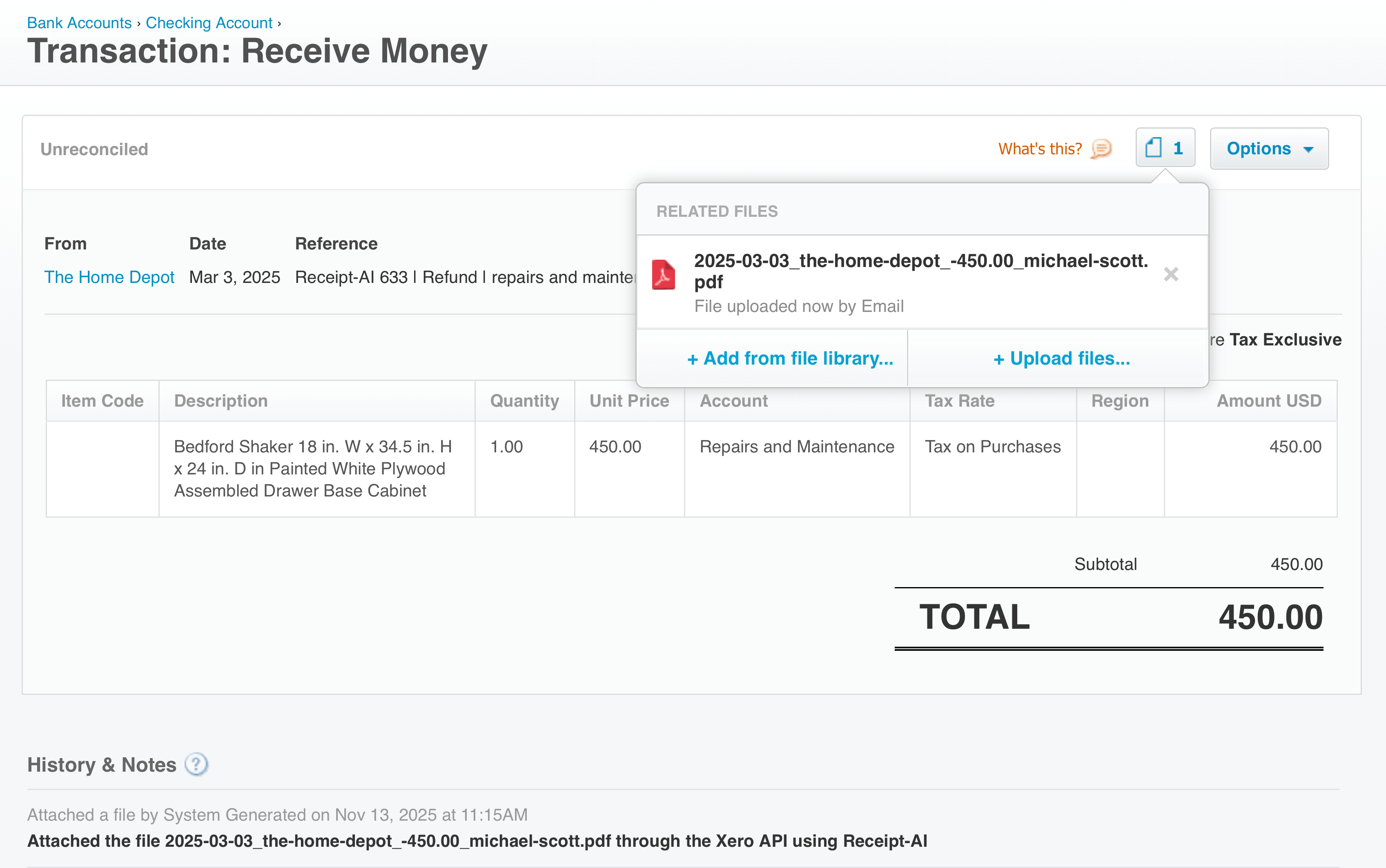
- Vendor: The Home Depot
- Transaction Type: Receive Money (Refund)
- Date: March 3, 2025
- Reference: Auto-generated by Receipt AI
- Refund Amount: $450.00
- Account Category: Repairs and Maintenance
Below the summary, Xero includes the exact item that was refunded:
- Bedford Shaker Drawer Base Cabinet — 1 unit at $450.00
The line item is mapped to the correct chart-of-accounts category and marked as a refund, ensuring your financial reports stay accurate and consistent.
Xero also displays the refund documentation automatically. Under Related Files, you’ll find the refund PDF that Receipt AI uploaded through the Xero API. This keeps every refund fully documented inside Xero — no manual uploads or file searching required.
The result is a clean, audit-ready refund record that’s easy to match to your incoming bank transaction and simple to reconcile.
Reconcile the Refund in One Click (Xero Bank Feed Match)
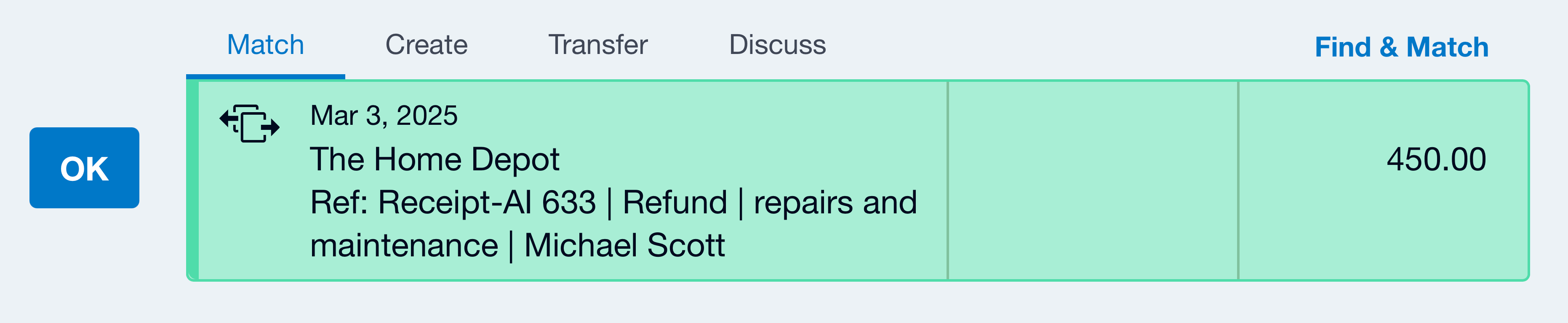
Once the refund appears in your bank feed, Xero automatically suggests a matching Receive Money transaction created by Receipt AI. Because the details — vendor, date, amount, and reference — are already aligned, Xero identifies the refund instantly.
In the match screen, you’ll see:
- Vendor: The Home Depot
- Reference: Receipt AI 633 (Refund)
- Category: Repairs and Maintenance
- Amount: $450.00
Everything is already pre-matched and ready to go. All you need to do is click:
OK
And the refund is fully reconciled.
There’s no manual data entry, no adjusting categories, and no searching for documents. Receipt AI handles the refund setup, and Xero completes the reconciliation in a single click — giving you a fast, accurate, and stress-free workflow.
Frequently Asked Questions
Q: What if I accidentally upload a refund receipt as a purchase?
A: Easy fix. Open the receipt in Receipt AI and change the total from negative to positive. Receipt AI will sync it to Xero as a standard Spend Money transaction instead of a refund.
Q: Can I correct a purchase that was recorded as a refund?
A: Yes. Edit the total in Receipt AI and change it from negative to positive. If your receipt includes line items, update those as well. On the sync, Receipt AI will create a Spend Money transaction instead of a Receive Money refund.
Q: How does Receipt AI choose the account/category for refunds?
A: Receipt AI maps the refund to an account in your Xero chart of accounts. If the original purchase is available, Receipt AI can mirror the same expense account. If not, it chooses the closest matching expense account. You can adjust the account in Receipt AI at any time.
Q: What type of transaction does Receipt AI create in Xero for refunds?
A: Receipt AI creates a Receive Money transaction for refunds. This is Xero’s correct method for recording money that is returned to your bank account or credit card.
Q: Does Receipt AI attach the receipt image to the Xero transaction?
A: Yes. Receipt AI uploads the image file directly to the related transaction in Xero and renames it automatically, giving you organized, audit-ready documentation.
Q: Will Xero automatically match the refund in my bank feed?
A: Yes. If the vendor, date, and amount line up, Xero will automatically match the transaction created by Receipt AI during reconciliation. Simply click 'OK' to reconcile.
Q: What if Xero doesn’t find the match?
A: If Xero doesn’t automatically suggest a match, it’s typically because the vendor name, amount, or date differs from what’s in your bank feed. Review the receipt in Receipt AI and correct any mismatched details. After editing, Receipt AI will resync the updated information so Xero can match it properly.