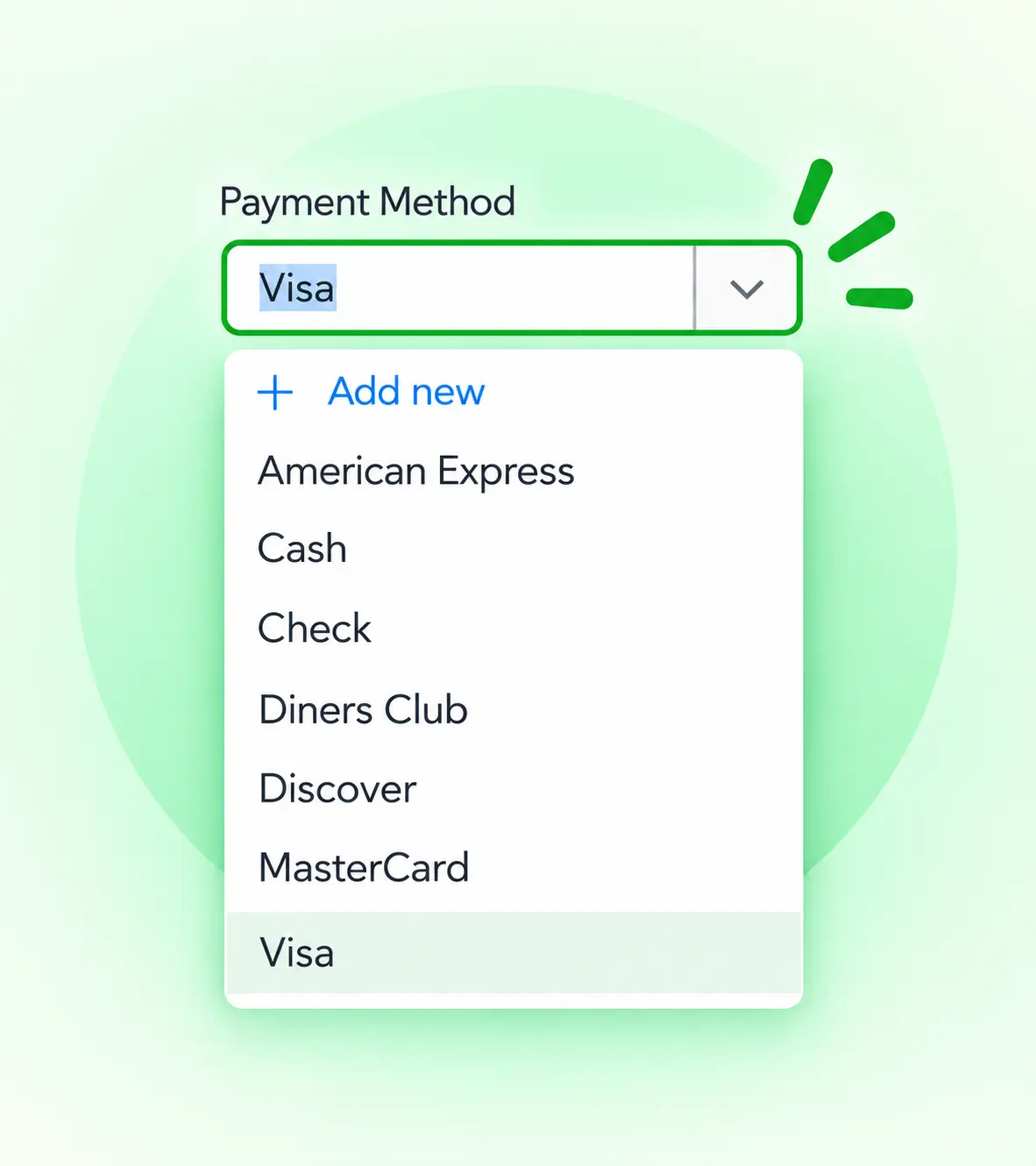
Payment Method is a small field in QuickBooks Online, but filling it manually on every receipt adds up.
A receipt may already show how it was paid — Visa, Cash, Check, PayPal, Stripe, or another payment method.
Receipt AI can capture that information and fill the Payment Method field before the receipt goes to QuickBooks.
What This Feature Does
Choose the QuickBooks payment methods you want Receipt AI to use.
When Receipt AI processes a receipt, it looks for the payment method on the receipt and matches it to one of the methods you enabled.
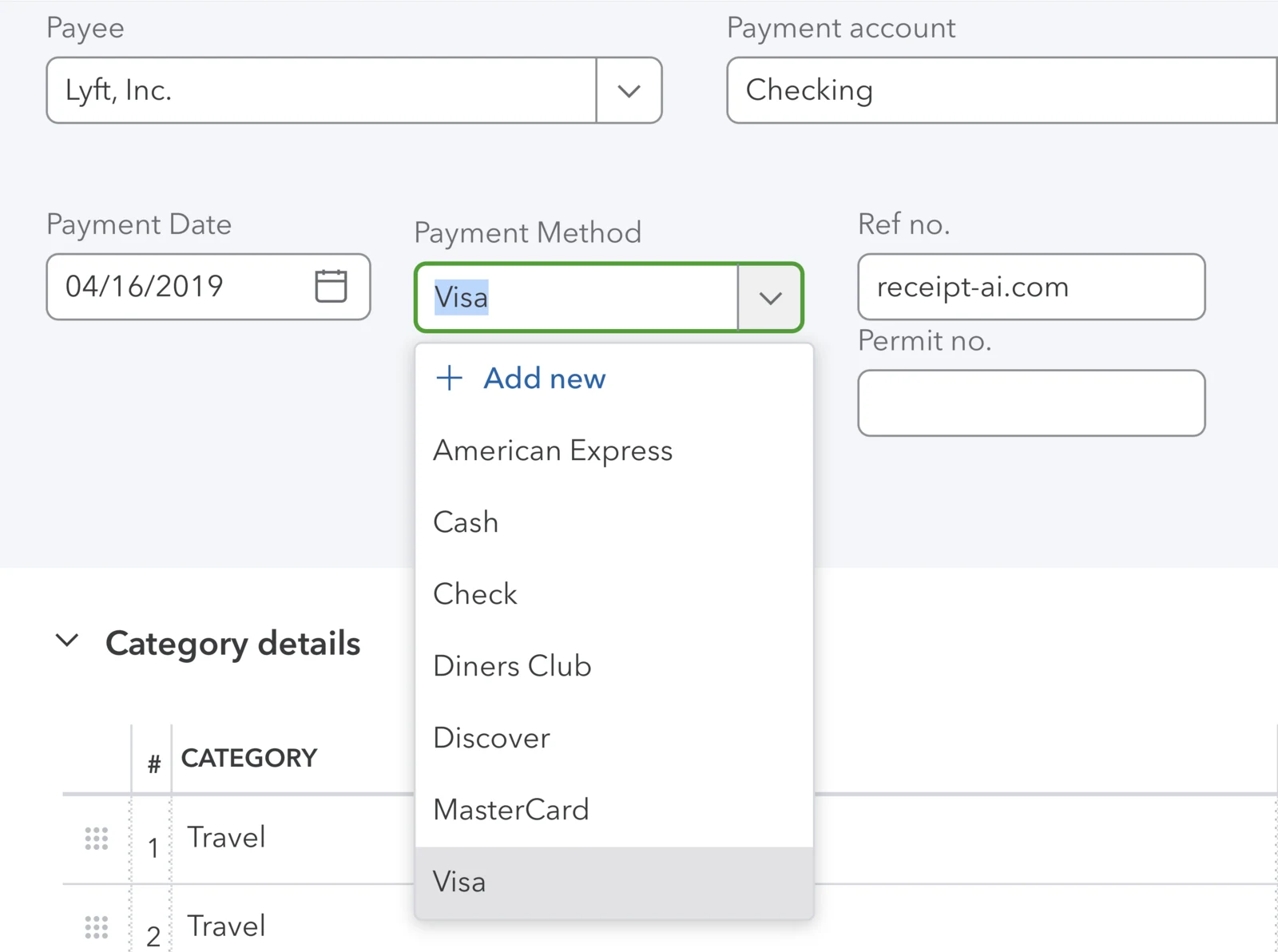
Real example: QuickBooks Payment Method field filled with Visa.
This product screenshot shows a QuickBooks Online expense from Lyft, Inc.. Receipt AI prepared these visible expense fields:
- Payee: Lyft, Inc.
- Payment account: Checking
- Payment date: 04/16/2019
- Payment method: Visa
- Ref no.: receipt-ai.com
- Category: Travel
For example:
Receipt shows Visa
→ Receipt AI fills Visa.
Receipt shows Cash
→ Receipt AI fills Cash.
Receipt shows Stripe and Visa
→ Receipt AI fills Stripe because Stripe is the payment platform.
Receipt shows Cash and Visa
→ Receipt AI leaves the field blank because the payment method is unclear.
Fill it when it’s clear. Leave it blank when it’s not.
Why Payment Methods Matter
Without a payment method, you may need to open the receipt again, check the bank feed, or ask the employee how the purchase was paid.
That may only take a few extra seconds for one receipt. Across hundreds of receipts, those extra clicks add up.
Receipt AI handles the payment method while it is already reading the receipt, so there is one less field to fill manually later.
If you use multiple payment methods, enable all the methods you want Receipt AI to choose from.
If you want one default payment method for every receipt, enable only that method.
How to Enable Payment Methods
Edit Profile → Enable Payment Methods → Save
That’s it. Receipt AI will start using your enabled payment methods when preparing receipts for QuickBooks Online.
What If Receipt AI Can’t Find the Payment Method?
It leaves the Payment Method field blank.
The same applies if the receipt shows a payment method that you haven’t enabled.
You can still send the receipt to QuickBooks Online. A payment method is not required.
Can I Use One Default Payment Method?
Yes.
Enable only one payment method, and Receipt AI will use it as the default for your receipts.
Does This Work With Xero?
No.
Payment Methods is currently for QuickBooks Online only. Xero does not use QuickBooks payment methods in the same way.
Less Clicking, Better Receipt Data
Receipt AI uses information that is already on the receipt to fill one more field for you.
When the answer is clear, it fills it.
When the answer isn’t clear, it leaves it alone.
One less field to select.
One less reason to reopen a receipt.
And one less repetitive bookkeeping task to do manually.