Before you price your next job, review what you spent on similar work.
Receipt AI keeps each job's purchase receipts in one folder. You can check the materials, quantities, and prices before preparing your next quote.
Receipts show part of the cost. You still need to include labor, shared costs, and profit.

Small Costs Are Easy to Miss
One heating and cooling contractor described a replacement job that finished on schedule. The customer paid on time.
But extra refrigerant, equipment rental, travel time, and a warranty callback reduced the profit. When the contractor reviewed the costs later, the profit was much lower than expected.
Before pricing your next job, check what similar jobs actually required.
Source: A contractor's account on Reddit - "Profitable jobs on paper keep turning into break-even or worse when I look at the actual numbers after" [Read the source]
Keep Each Job's Receipts Together
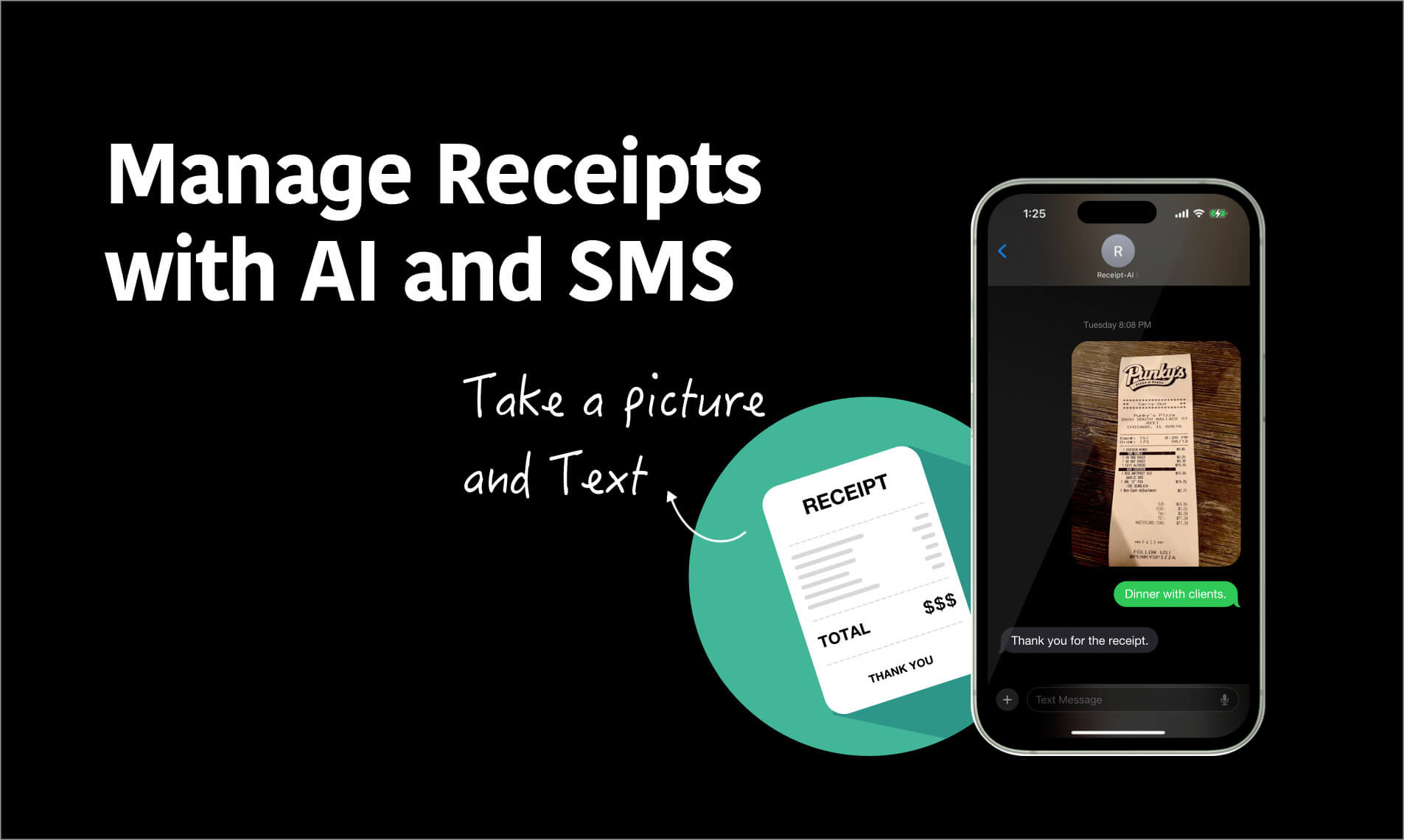
- Send receipts to Receipt AI by text message, email, web, or WhatsApp.
- Receipt AI extracts the vendor, date, total, tax, and line items.
- When Receipt AI prompts you about the receipt, choose an existing folder number or type a new folder name.
- Add a memo when you need to explain a purchase, such as "extra fittings for damaged pipe."
How to Name Your Folders
For job folders, use: Month - Customer name - Short description.
For example: 2611 - Jennifer Brooks - Air Conditioner Installation.
The first two digits show the year. The last two show the month. Here, 2611 means November 2026. Use the customer's full name or company name.
Keep shared costs in separate folders, such as Fuel - November 2026 or Vehicle Maintenance - November 2026. Do not assign a whole month's fuel to one job.
Learn more: How to Track Fuel, Tolls, and Van Costs Per Job.
Review Similar Jobs Before You Quote
Open folders for recent jobs with similar work. Review the receipts, or download a CSV file with the information you need.
- What materials did you buy?
- What quantities did you purchase for the job?
- Did you need extra supplies or rental equipment?
- Have prices changed?
You do not need a fixed number of jobs. Start with the records you have. Compare similar work, and check memos for unusual costs.
An Example: Your Next Air Conditioner Installation
You are preparing a quote for an air conditioner installation.
Open the folder for a similar installation. Along with the main equipment, you find receipts for fittings, a drain line, mounting supplies, and equipment rental.
Use those purchases as a checklist. Confirm the quantities and current supplier prices for the new job.
Then account for estimated labor, a share of shared business costs, and your profit target. Adjust for differences such as access, travel, and the work required.
The previous job gives you a starting point. It does not set the new job's price.
What Receipt AI Helps You Track
Receipt AI keeps purchase details and receipt images together. Folders connect those records to a job. Memos explain purchases that need context.
You can download the records as a CSV file to review in a spreadsheet. If you use QuickBooks Online or Xero, accounting sync is available on Business Basic and higher plans.
Receipt AI does not calculate your quote. It helps you find the purchase records you need to prepare it.
Frequently Asked Questions
Do the Receipts Show the Full Cost of a Job?
No. They show recorded purchases. Add labor, materials taken from inventory, and shared costs separately. Avoid counting the same cost twice.
What If One Receipt Includes Materials for Several Jobs?
Do not treat the whole receipt as one job's cost. Use the line items to identify the purchases for each job. Split the costs in your spreadsheet or accounting records.
Can I Use Last Year's Receipts?
Yes. They can help you remember what the work required. Check current prices before using the amounts in a new quote.
Do I Need QuickBooks Online or Xero?
No. You can organize receipts into folders and download a CSV file without connecting accounting software.
Start With Your Last Similar Job
Before sending your next quote, open the folder for a similar job.
Check what you bought, what you missed, and what has changed.
Keep the next job's receipts together so you have a better record for the quote after that.