Receipt AI is not just a place to upload receipts. It helps turn uploaded receipts into searchable records your team can come back to later.
That matters when you need to find one receipt fast: a lunch receipt from last month, a charge with a specific amount, a receipt uploaded by a teammate, or a memo tied to a project.
Find receipts by what you remember
When you are looking for an old receipt, you may not remember every detail. Sometimes you remember the vendor. Sometimes you remember the amount. Sometimes you remember who uploaded it. Sometimes you only remember the memo, like "Lunch with Jason" or "Q3 project."
Receipt AI helps you start with the detail you remember, then narrow the results from there.
Use search when you remember a detail
The receipt search box helps you find receipts by details such as:
- Receipt or vendor name, such as a restaurant, store, or merchant
- Memo, such as a client name, project note, or reason for the expense
- Total amount, when you remember the charge but not the vendor
- Teammate name, when you want to find receipts uploaded by a specific person
Use filters when you want to narrow a group
Search is useful when you remember a detail. Filters are useful when you want to narrow a group of receipts.
- Date: Find receipts from a specific month or date range
- Folder: Review receipts grouped by project, client, location, or workflow
- Member: See receipts from a specific teammate
- Review Required: Focus on receipts that still need attention
Watch: finding receipts in Receipt AI
This product video shows how Receipt AI helps you look up uploaded receipts from one dashboard.
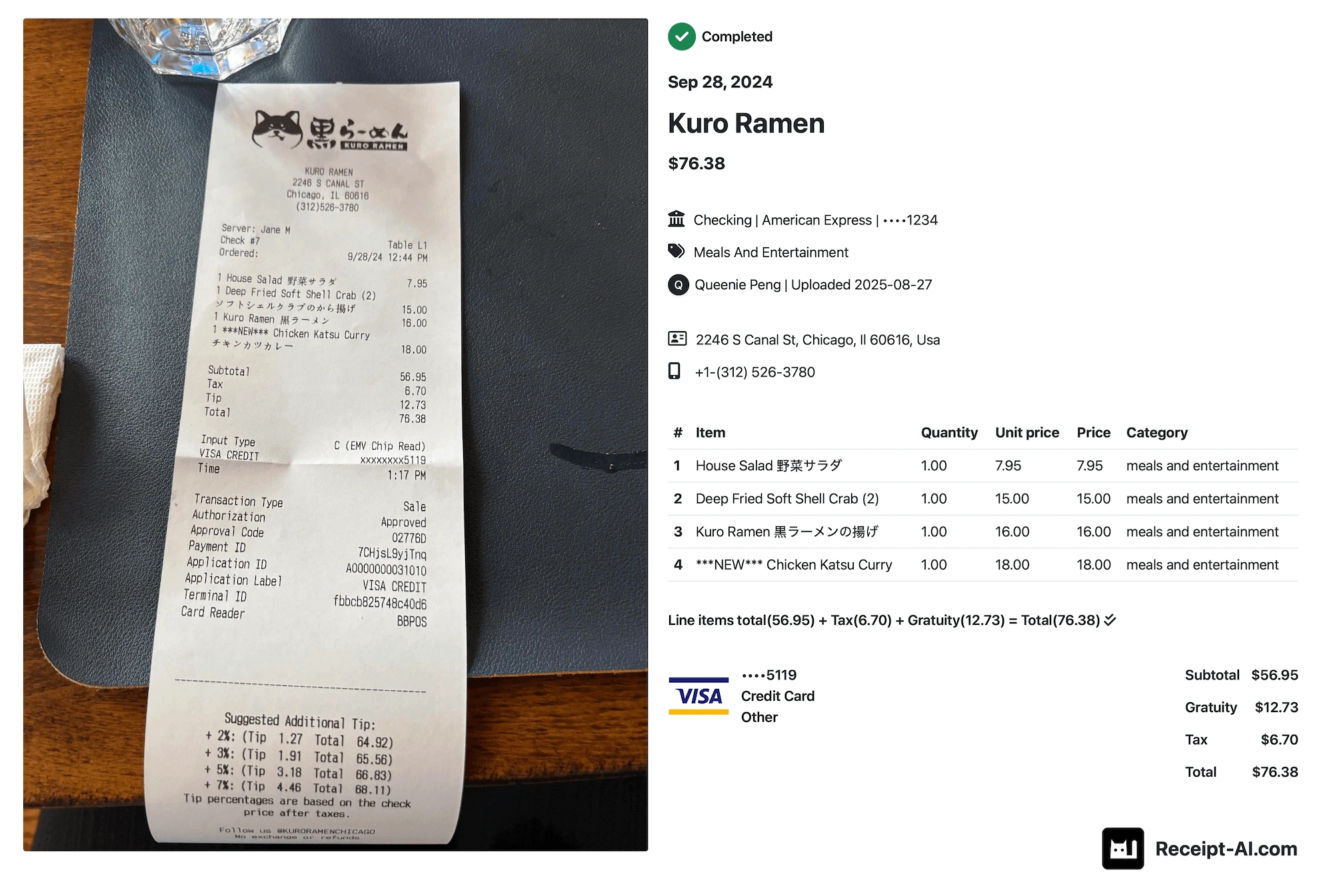
The dashboard helps you review uploaded receipts, totals, and receipt activity without digging through paper piles, camera rolls, or email threads.
Example workflows
Here are a few common ways teams use receipt search and filters:
- Find a lunch receipt: Search the vendor name or memo, such as "Lunch with Jason."
- Find a charge by amount: Search the total if you remember the dollar amount from a bank or card statement.
- Find receipts from one teammate: Search or filter by member when you need to review one person's uploads.
- Find project receipts: Use folders and memos to keep receipts tied to a client, project, or job.
- Review unfinished receipts: Use Review Required to focus on receipts that still need a human check.
Why searchable receipts matter
Uploading a receipt is useful. Finding it later is where the real value shows up.
For small businesses, accountants, and teams, searchable receipts can make bookkeeping reviews easier. Instead of asking someone to resend a receipt or scrolling through old messages, you can search by the detail you remember and narrow the results with filters.
This helps with month-end bookkeeping, tax records, reimbursements, audits, client projects, and QuickBooks or Xero workflows.
Receipt search FAQ
What can I search for in Receipt AI?
You can search receipts by details such as receipt name, vendor name, memo, total amount, or teammate name.
Can I filter receipts by date?
Yes. Receipt AI includes date filters so you can narrow receipts by month or date range.
Can I find receipts uploaded by a teammate?
Yes. You can search by teammate name or use the member filter when your team account supports member-based receipt views.
Can I organize receipts by project or client?
Yes. Folders and memos can help keep receipts tied to a project, client, location, or workflow.
Why should I add a memo when uploading a receipt?
A memo gives you another way to find the receipt later. For example, adding a client name, project name, or meeting note can make the receipt easier to search during bookkeeping review.
Upload receipts now. Find them later.
Receipt AI helps every upload become something your team can search later. Send receipts by SMS, email, or web upload, add memos when useful, and keep your receipt records easier to find.
Start with Receipt AI if you want a searchable receipt workflow for bookkeeping, QuickBooks Online, or Xero.